
Emmet Abbreviation in VS Code: What It Is and How to Fix It
What Is an Emmet Abbreviation?
An Emmet abbreviation is a shorthand syntax used in HTML and CSS that allows developers to quickly generate code without having to write it manually.
For example:
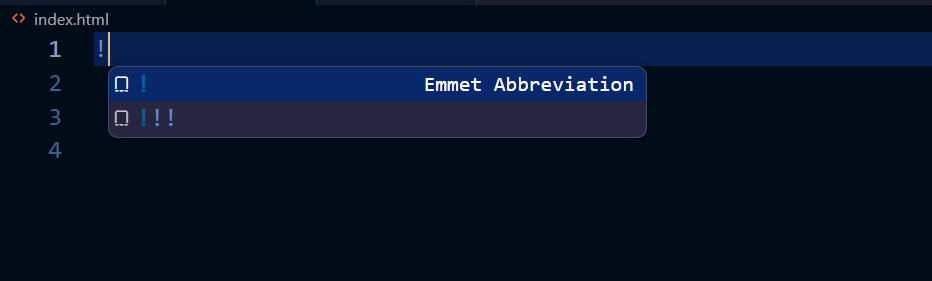
As shown in the screenshot above, when you start writing HTML content, you only need to type “!”. This will display an Emmet abbreviation suggestion that you can select to quickly generate the basic HTML syntax.
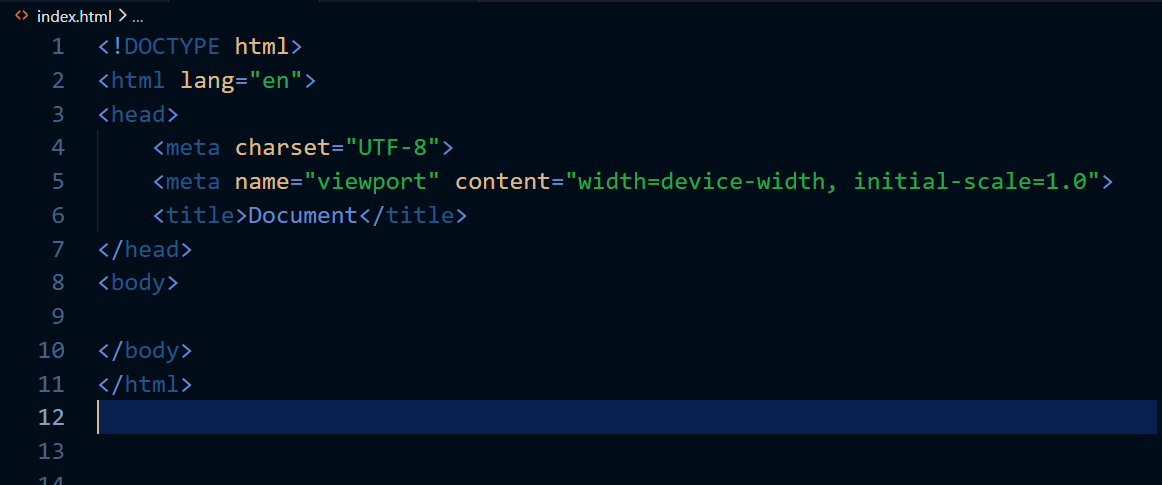
In the second screenshot, once you add the Emmet abbreviation, it will generate the HTML syntax for you.
How to use Emmet Abbrevation ?
First, create an HTML file, for example, index.html.Then simply type “!”.
If the Emmet abbreviation is not showing, it means the Emmet configuration may not be set up correctly.VS Code supports Emmet in HTML and several other markup and stylesheet languages by default.
Emmet Abbreviation Not Working? Try These Fixes
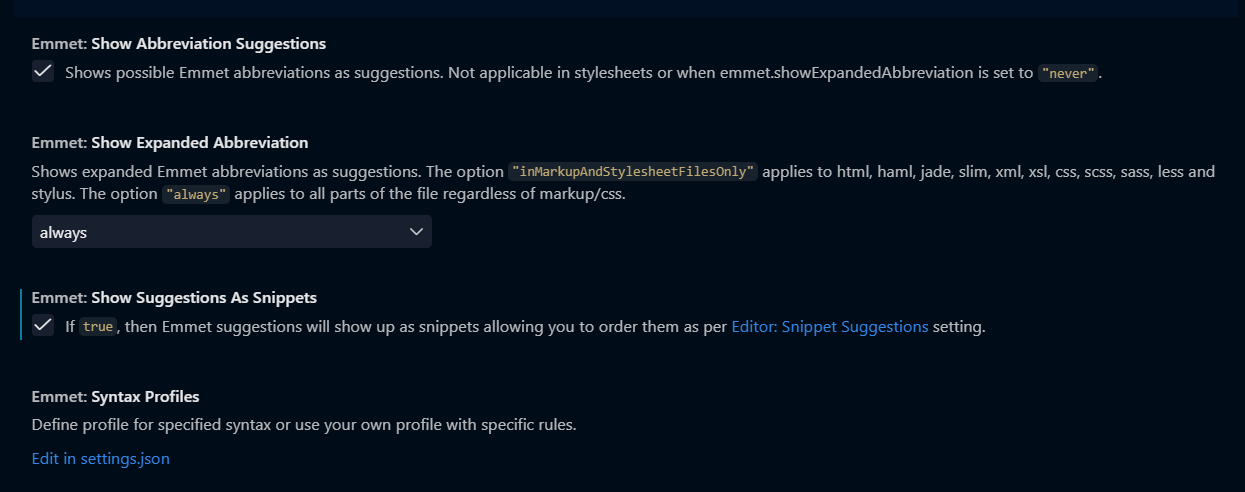
To fix these errors, you need to follow a few simple steps that will give you complete information on how to fix the Emmet abbreviation issue.
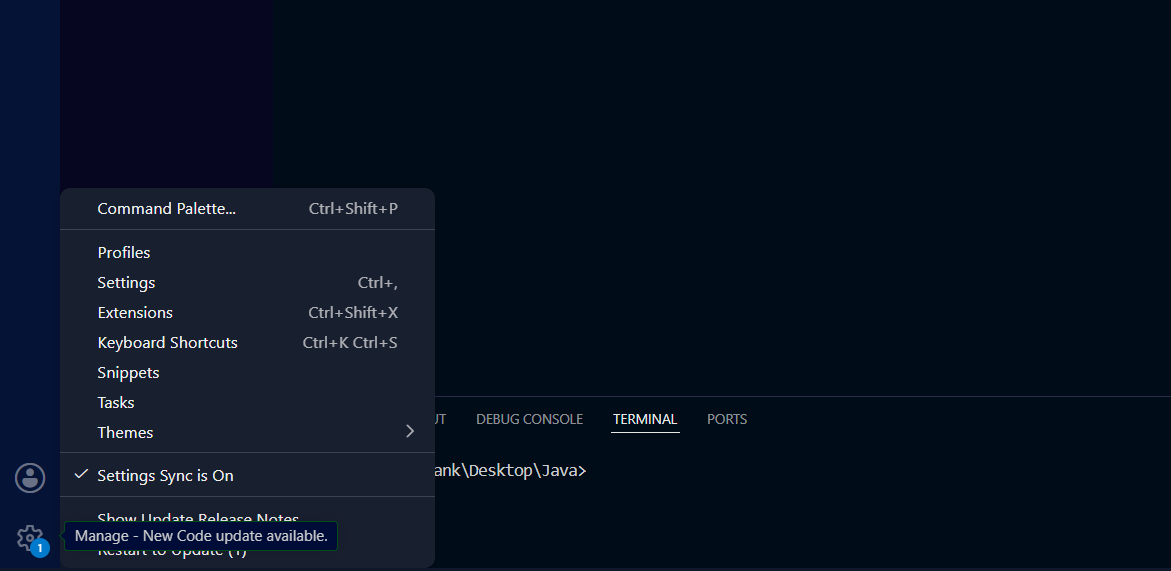
1. Go to Settings. On the bottom-left side, you will see the Settings (gear) icon, as shown in the screenshot. Click on it to open the Settings.
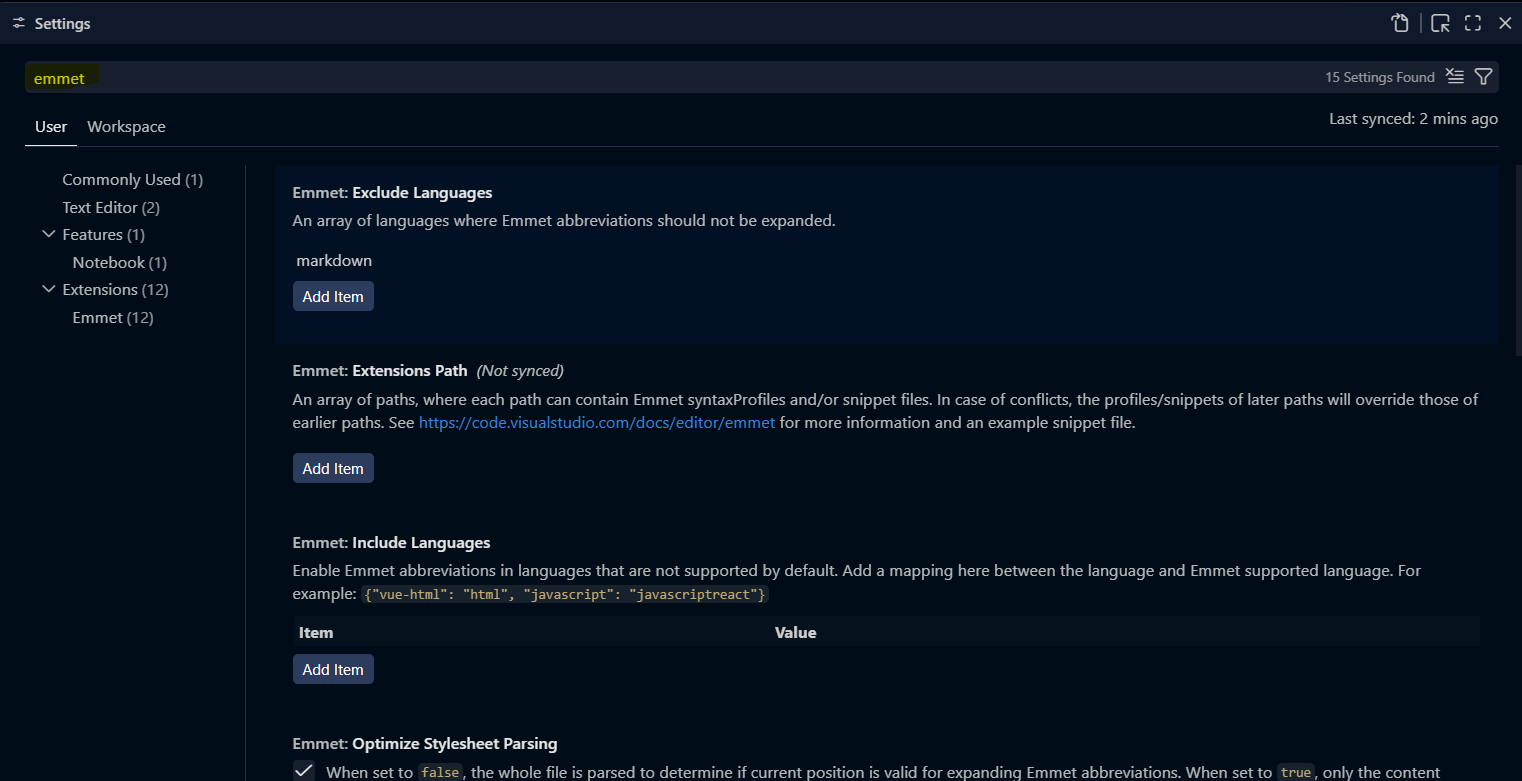
2. Then, simply type “Emmet” in the search bar. Multiple results related to Emmet will be displayed.
You need to check and configure these three settings:
a. Emmet: Show Abbreviation Suggestions
Make sure this option is checked. This will allow you to see Emmet abbreviation suggestions.
b. Emmet: Show Expanded Abbreviation
For this setting, you need to select “always.”
c. Emmet: Show Suggestions as Snippets
Make sure this option is also checked.Once you have followed all these steps, you should be able to fix the Emmet abbreviation errors completely.